Access keys
The console signs people in with a session; a client signs with a key. An access key is what the AWS CLI, Terraform or an SDK uses to call the gateway.
Create one
-
Sign in at
/loginas the account's root user — the email address the account was created with.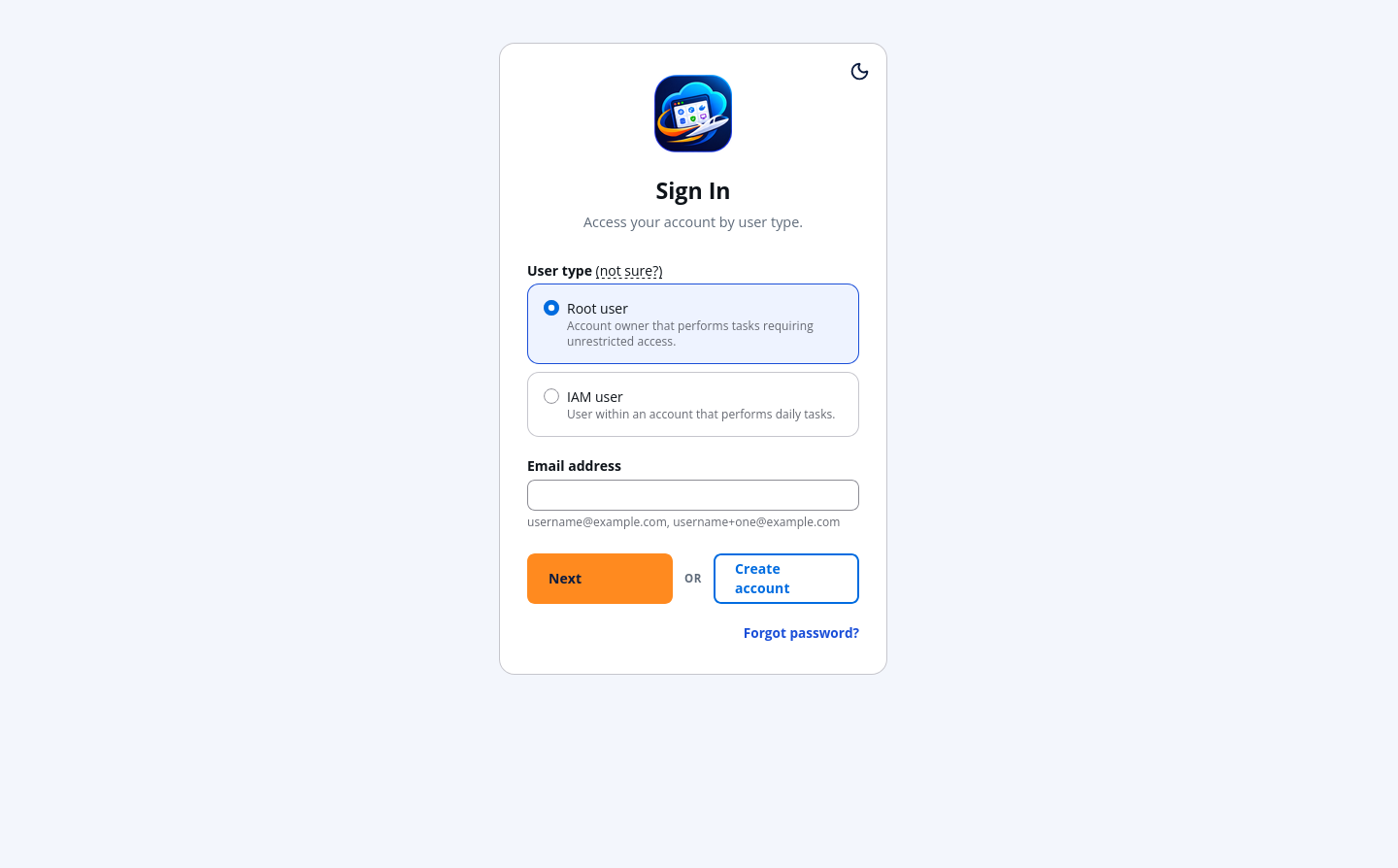
-
Open Settings and find the Access keys table.
-
Choose Create access key.
-
Copy the secret access key from the dialog. It is shown once: afterwards the table shows only a masked id and a masked secret.
An account holds up to two keys, so a new key can be minted and proved before the old one is deleted. Deleting a key stops every client still using it, with no grace period.
Use it
export AWS_ENDPOINT_URL=http://localhost:4571
export AWS_ACCESS_KEY_ID=<the key id>
export AWS_SECRET_ACCESS_KEY=<the secret from the dialog>

aws s3 ls
The gateway reads the account from the key, refuses a signing region that account
has not enabled, and forwards the request. Behind a proxy, AWS_ENDPOINT_URL is
the gateway's public address instead of localhost:4571.
Root accounts and IAM users, today
- Sign-up creates a root account. Root owns its tenancy — buckets, keys, regions — and nothing outside it.
- IAM users are not created by the console yet. The control API creates them
from a terminal (
POST /api/users, see the control API reference); they then sign in at/loginchoosing IAM user, with the account name, the user name and their password. - A key belongs to one principal. An IAM user's key reaches that account and no other, exactly like root's.